
User guide
Everything Sabster Projects can do, step by step. Buttons and menus are named as in the app.
1. Getting started
Sabster Projects is a project tracker for anything with a deadline, a next step, or an answer you're waiting for: a home renovation, product development, client work, an event or software.
Where you can use it
- Windows 10/11 – from the Microsoft Store. It runs in the tray and starts with your PC, so reminders ring even with the window closed.
- Android – from Google Play. Reminders ring like an alarm, even on a locked phone.
- Browser – at projects.sabster.hu/app, nothing to install, on a Mac and an iPhone too.
You log in with the same account everywhere and see the same projects everywhere. What you change on one device shows on the others within seconds.
Signing up
- Open the app and choose Create account.
- Enter your name, your email and a password (twice). Accept the terms of use and the privacy policy.
- Done: the 14-day trial starts right away, with every feature, the AI assistant included. No card needed.
The app is in Hungarian if your email ends in .hu, otherwise in English. You can change it any time under Settings → General.
Forgot your password
On the login screen, the Forgot password? link sends you an email to set a new one.
2. Finding your way around
The main parts of the app:
| Page | What it's for |
|---|---|
| Today | Everything due today and this week, and the next steps of your projects. |
| Projects | All your projects, filtered and sorted the way you like. |
| Todos | Your todos without a project and the tasks of your projects in one list. |
| Reminders | Your own reminders, in time order. |
| Calendar | Everything with a date, month by month. |
| Settings | Account, subscription, notifications, email, templates and calendars. |
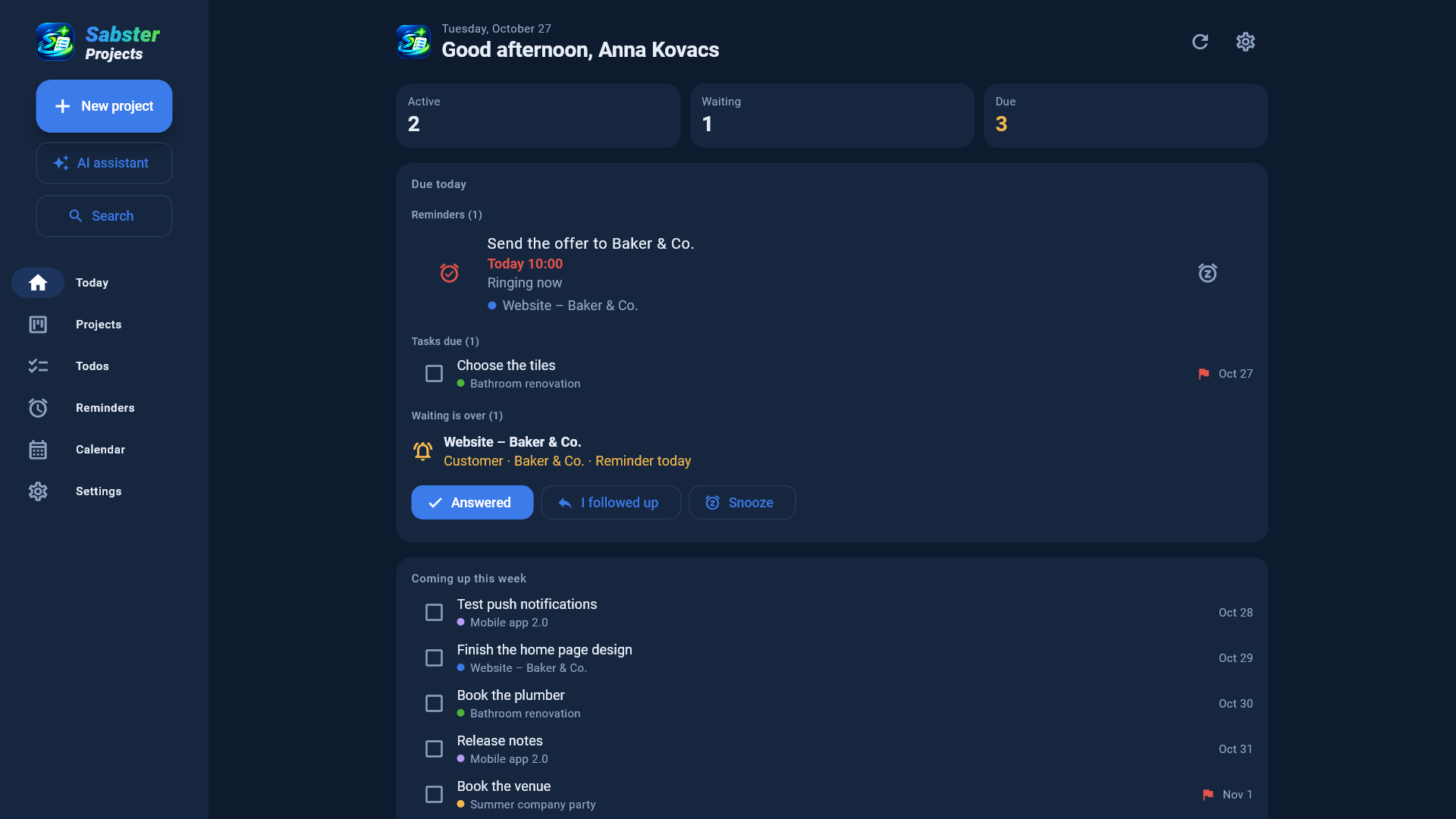
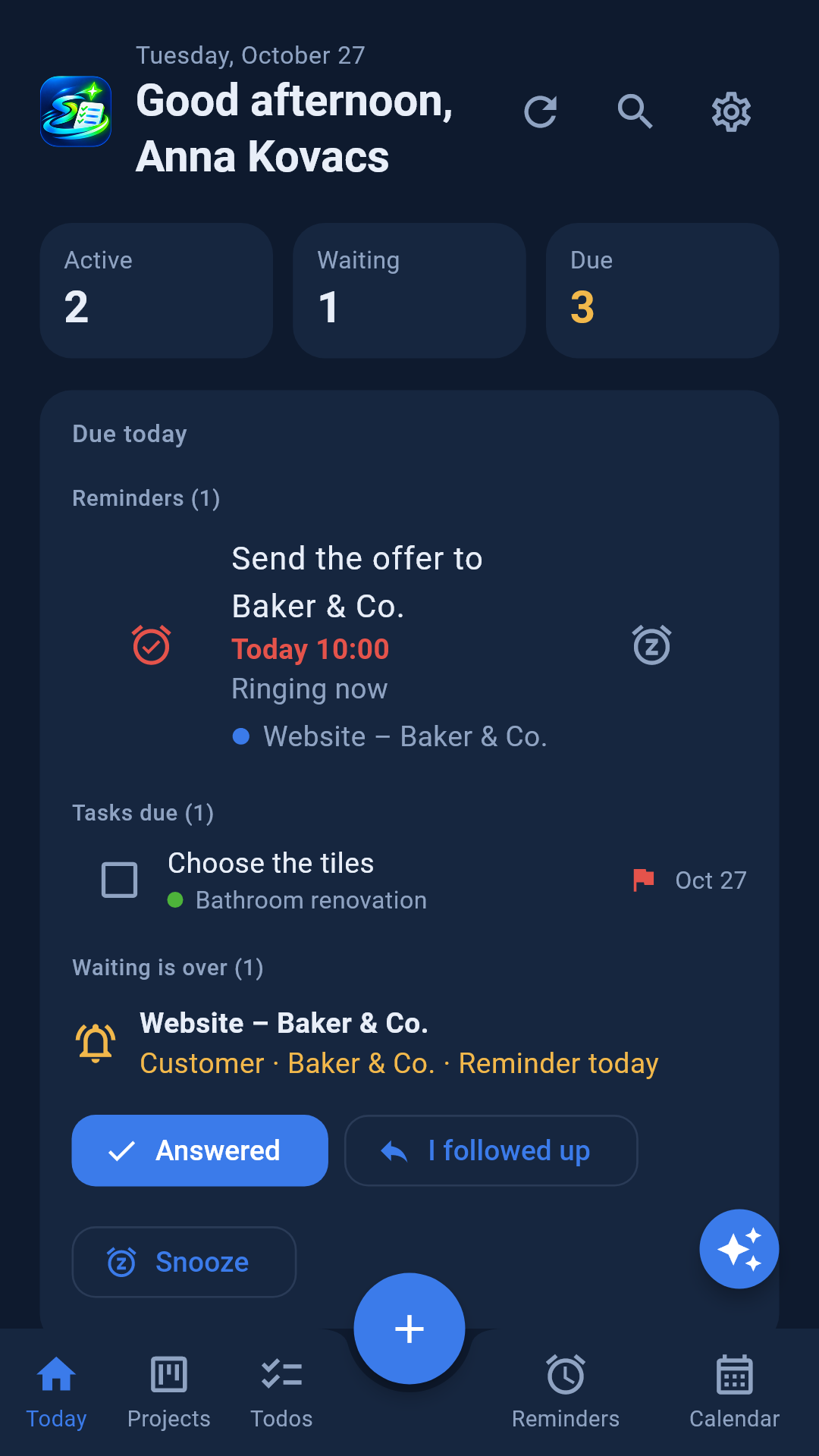
On a phone the pages are in the bar at the bottom; the + in the middle always creates what fits the page (a project, a todo or a reminder). Settings opens from the gear icon at the top of the Today page. The ✨ button at the bottom right is the AI assistant.
On a PC and in the browser the menu is on the left; at the top New project, below it the AI assistant and Search buttons.
Search
The 🔍 button (at the top of the Today and Projects pages, on a PC in the left menu) searches everything: projects, tasks and todos, notes, contacts, links, file names and your reminders. Type at least two letters; tapping a result takes you where it lives. Matches in archived projects are on the Archived tab; the number in brackets shows how many there are.
Refresh
The app refreshes by itself every minute and whenever you come back to it. To see a change made elsewhere right away, tap ↻ Refresh at the top of the page.
3. The Today page
The Today page is where your day starts. At the top three numbers: how many projects are active, how many are waiting, and how many things are due today.
- Due today – reminders for today, waits that ran out (mark them right there: Answered, I followed up, Snooze), project deadlines and tasks due today or earlier.
- Assigned to you – tasks given to you in shared projects.
- Coming up this week – the next 7 days by date: waits running out ⏳, project deadlines 📅 and tasks ☐.
- Next steps – the first next step of every active project.
4. Projects
A new project
- Tap New project (on a phone the + on the Projects page).
- Give it a name and pick its type: General, Home & household, Product development, Software, Client job or Event. The type decides which tabs the project has (e.g. Shopping list and Budget for home, Milestones with versions for software). You can switch tabs on and off one by one later.
- Optionally a deadline, a colour, a description and a first next step.
If you have a saved template, you can start the project from it – see Templates.
Statuses
Every project has a status: Planning, Active, Waiting, Paused or Done. Set it with Change status on the project's Overview tab. Waiting has its own chapter: Waiting.
The project page
Tapping a project opens its page. At the top the tabs: Overview, Tasks, and depending on the type Notes, Milestones, Links, Contacts, Shopping list, Budget, Files.
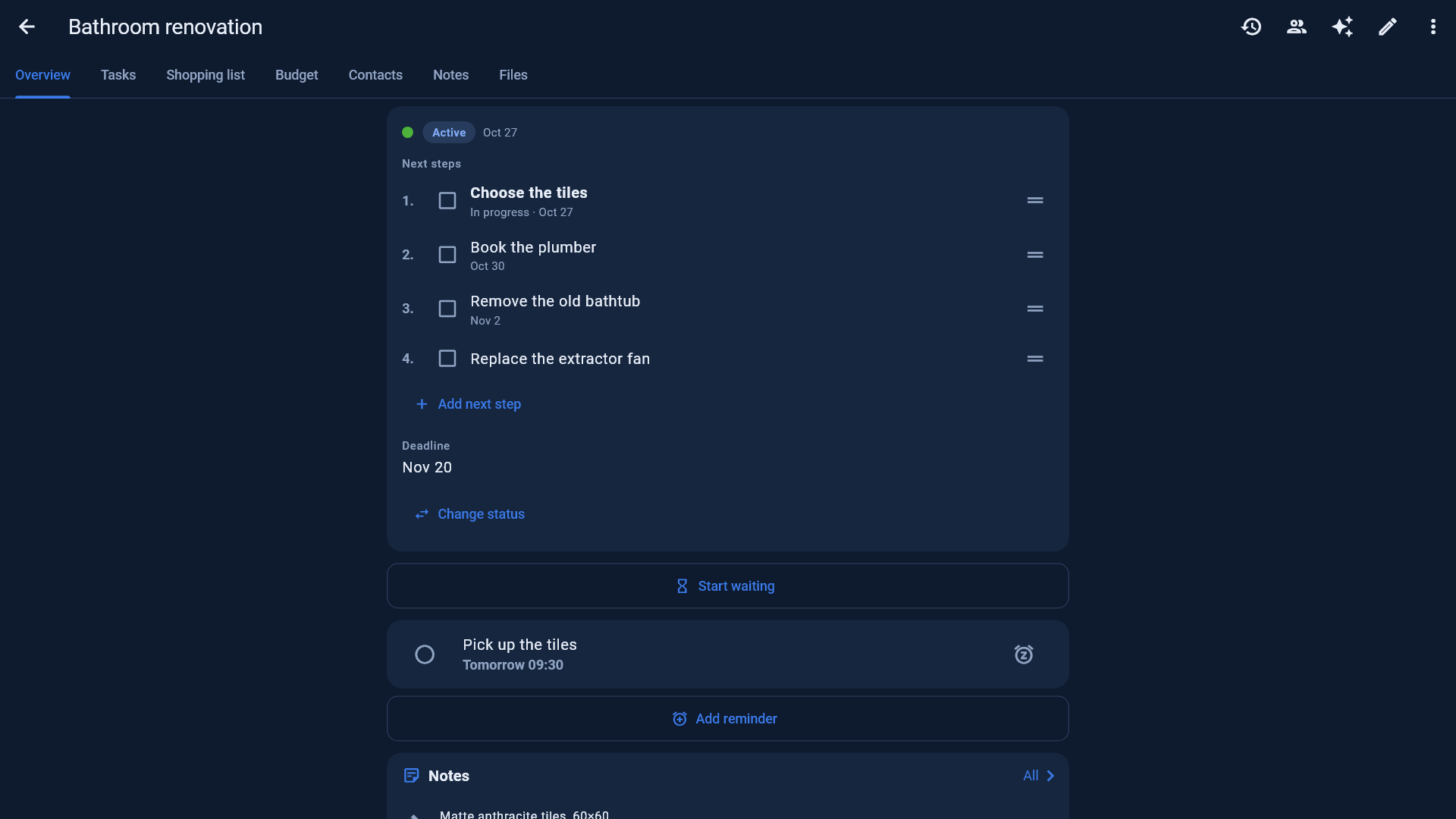
Overview shows the status, the deadline, the Next steps in order (grab the ☰ and drag), the project's reminders, the latest notes and milestones. The icons at the top right: 🕑 history (every change), 👥 sharing, ✨ AI assistant for this project, ✏️ edit, ⋮ more (project done, save as template, apply template, archive).
Next steps
A project's open tasks are also its next steps, in your order. The first one shows under the project's name in every list, so you see at a glance what to do. Add one with the Add next step line: it opens the task editor, so details, a due date and the rest can go in right away. Tick one off and the next takes its place.
The Projects page
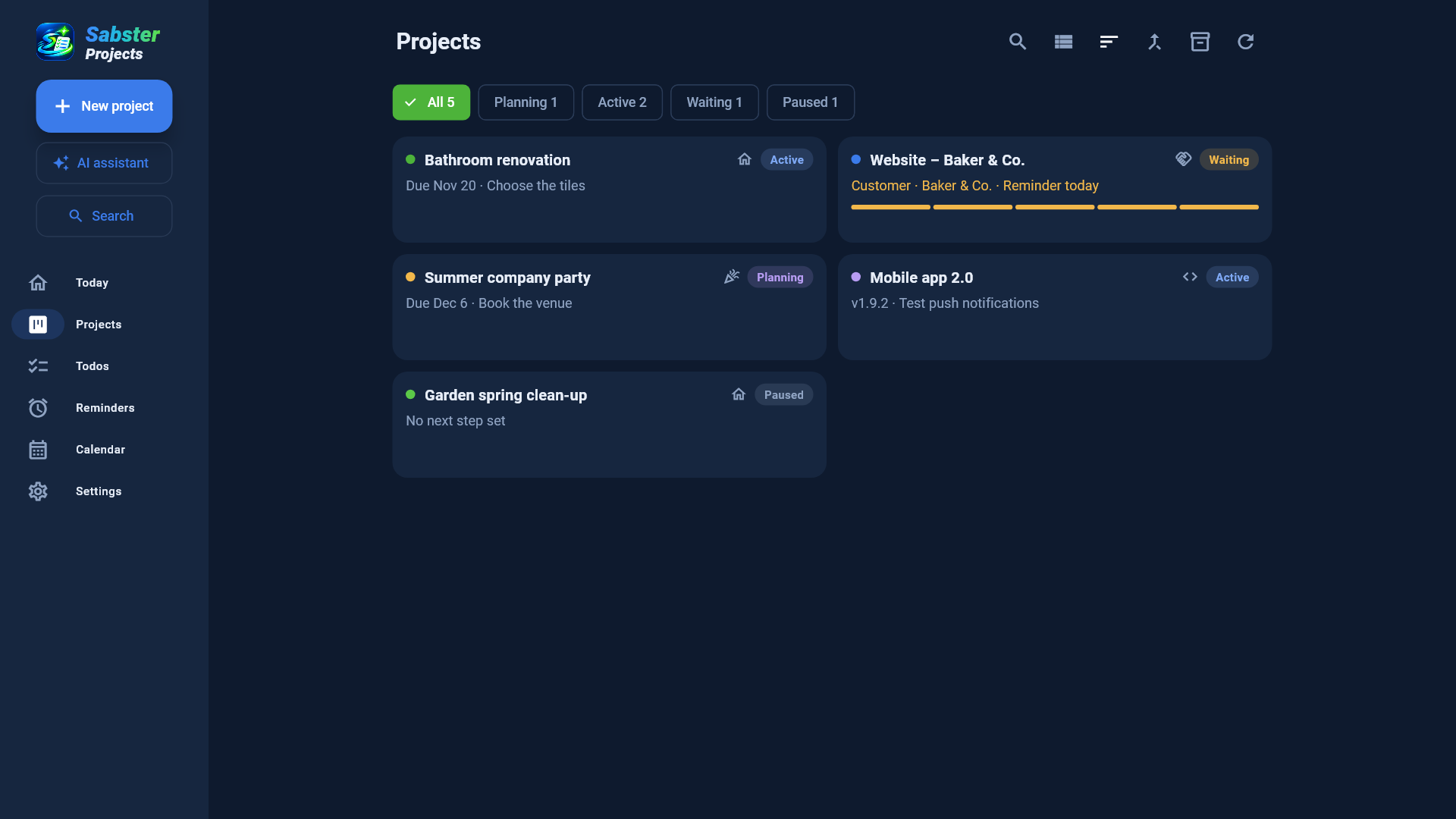
- Filter by status with the buttons at the top (All, Active, Waiting…).
- Sort with the ☰ icon: by status, name, deadline, last changed, created or waiting ends – and ascending or descending in the same menu.
- View: cards or a list (one project per row). On a phone it's in the ⋮ menu.
- Each device remembers your choice.
Archive, restore, delete
When every task is ticked off, the Overview offers Project done (also in the ⋮ menu): it marks the project done and asks whether to archive it too. You can also archive a finished or parked project from the ⋮ menu: it disappears from your lists but nothing is lost. Under Archived projects (the 🗄 icon at the top of the Projects page, on a phone in the ⋮ menu) tap one to look through it (read-only), restore it, or delete it for good – deleting for good also deletes its files and can't be undone.
Merging projects
When two projects are really the same (e.g. two emails started two projects):
- On the Projects page tap the ⇄ Merge projects icon (on a phone in the ⋮ menu).
- Tick the projects to merge (two or more).
- Choose which project stays – it keeps its status, deadline, colour and sharing – and its name (filled in with its own name; you can change it).
- Merge: the other projects' tasks, notes, files, costs, reminders and history move over, and the other projects are deleted.
Emails with the old projects' subjects keep arriving in the merged project. You can only merge your own projects, not ones shared with you.
5. Waiting
Most projects end up waiting for someone: a customer's answer, a supplier, an approval, a payment or a delivery. Sabster Projects counts the days for you and reminds you when it's time to follow up.
Start waiting
- On the project's Overview tap Start waiting (or set the status to Waiting).
- What are you waiting for? Customer, Supplier, Approval, Payment, Delivery or Other.
- Who or what (optional): e.g. "Kovács Ltd., reply to the quote".
- How many days to wait? – e.g. 5 days.
- You can add a comment.
From then on the project's card counts down, and on the day you get a notification (on the phone, on Windows and in the morning email), and the project shows under Due today on the Today page.
When it runs out
- Answered – the wait ends; you choose the project's status now (e.g. Active).
- I followed up – you wrote or called; you set how many more days to wait and the countdown starts again.
- Snooze – not yet; you set in how many days to remind you again.
6. Tasks and todos
Adding a task
Add tasks with Add a task on the project's Tasks tab or under the next steps on its Overview. Save & new saves the task and opens an empty editor for the next one, handy for a whole list. In the task editor:
- Title and notes,
- Status: To do, In progress, Waiting, Done,
- Priority: Low, Normal, High (high shows a red flag),
- Due date and – optionally – a Time,
- Repeat: Once, Every day, Weekdays, Weekly, Every 2 weeks, Monthly, Yearly,
- Assigned to: one or more people of the project.
List or board
The Tasks tab shows tasks as a list or a Kanban board (To do – In progress – Waiting – Done). On the board, drag a card to another column; in the list, drag by the ☰ to reorder.
Due time – an alarm
When a task has a time too, an alarm rings at that minute for whoever the task is assigned to (or for you if nobody): full screen with sound and vibration on the phone, the alarm window on the PC. Done on the alarm marks the task done too. Change the task's date or time and the alarm moves with it; finish or delete the task and it's gone. These alarms show with a ✓ mark among your Reminders.
Waiting tasks
When a task waits for someone else (an answer, a quote, an approval), you don't have to put the whole project on Waiting: just the task.
- In the task editor, choose Waiting under Status (or drag the card into the Waiting column on the board).
- Say what it waits for (Customer, Supplier, Approval…), who or what (e.g. "Csaba"), and how many days to wait (3 by default).
The task then shows ⏳ Waiting: Csaba · Oct 31. Its due date stays the same. When the wait runs out you get a notification (the task's assignees, or whoever made it if nobody is assigned), and the task shows on the Today page under Waiting tasks due, with the same three buttons as projects: Answered (the task goes back to To do or In progress), I followed up and Snooze. A comment you type there also goes into the project's Notes.
A project's next step is always its first task that is not waiting – what you can do now. When every open task is waiting, the first waiting one is the next step.
Recurring tasks
Mark a recurring task (🔁) done and the next one appears right away with the next due date – the same time, notes, priority and people. Tick it off late and the next one doesn't land in the past but on the next due day (e.g. a weekly Monday task ticked off on Wednesday comes back next Monday).
Todos – without a project
Not everything belongs to a project ("buy milk", "call the plumber"). On the Todos page, + adds a todo of your own, without a project – with the same options as a task. You can move it into a project later, or out of one.
The Todos page also shows the tasks of all your projects. Filters: All, Own todos, Assigned to me, Due.
Assigning to others
In a shared project you can assign a task to any of the project's people (not view-only ones). They get a notification and an email, a reminder on the day it's due, and you get a notification when it's done.
7. Notes, milestones, links, contacts, shopping, costs
Notes and decisions
On the Notes tab you keep free-text notes and decisions. A decision gets a date, so you can always look up what was decided and when. Pin important ones to the top 📌. Notes marked ⏳ came from comments typed at waiting steps.
Milestones
The big moments: "prototype ready", "samples sent", "handover". With a date and a description; mark them when reached. Software projects can add a version and a platform – the version of a reached milestone becomes the project's current version.
Links
Websites, documents, shops, accounts, folders – in one place, with an icon for each kind. The app adds https:// by itself.
Contacts
The people of the project: name, role, company, phone, email, notes. On a phone, tap a number or address to call or write.
Shopping list / Materials
What to buy, with quantity, unit, unit price and supplier. Tick off what you bought; the total of bought items counts in the costs automatically.
Budget
Set a budget and a currency, and log costs (what for, how much, when, category). You always see what you spent and what's left.
8. Files
The Files tab has every file of the project: photos, receipts, documents, emails forwarded into the project.
Adding files
- Add files – pick files on the PC or the phone.
- Take photo – straight from the camera on a phone.
- Drag and drop (Windows) – drag files in from File Explorer, or emails and attachments straight from Outlook.
- Paste (Windows) – copy a picture or files to the clipboard and paste them (Ctrl+V, or the Paste button).
Large files upload in pieces, so they get there safely even on a slow connection.
Editing Word and Excel files
Open the file (Open), edit it in Word or Excel and save. When you come back to the app it asks whether to upload the changed version: it becomes a new version, and earlier versions stay and can be downloaded.
Storage
Each account has 1 GB of storage, all your projects together. You see how much is used at the bottom of the Files tab.
9. Reminders
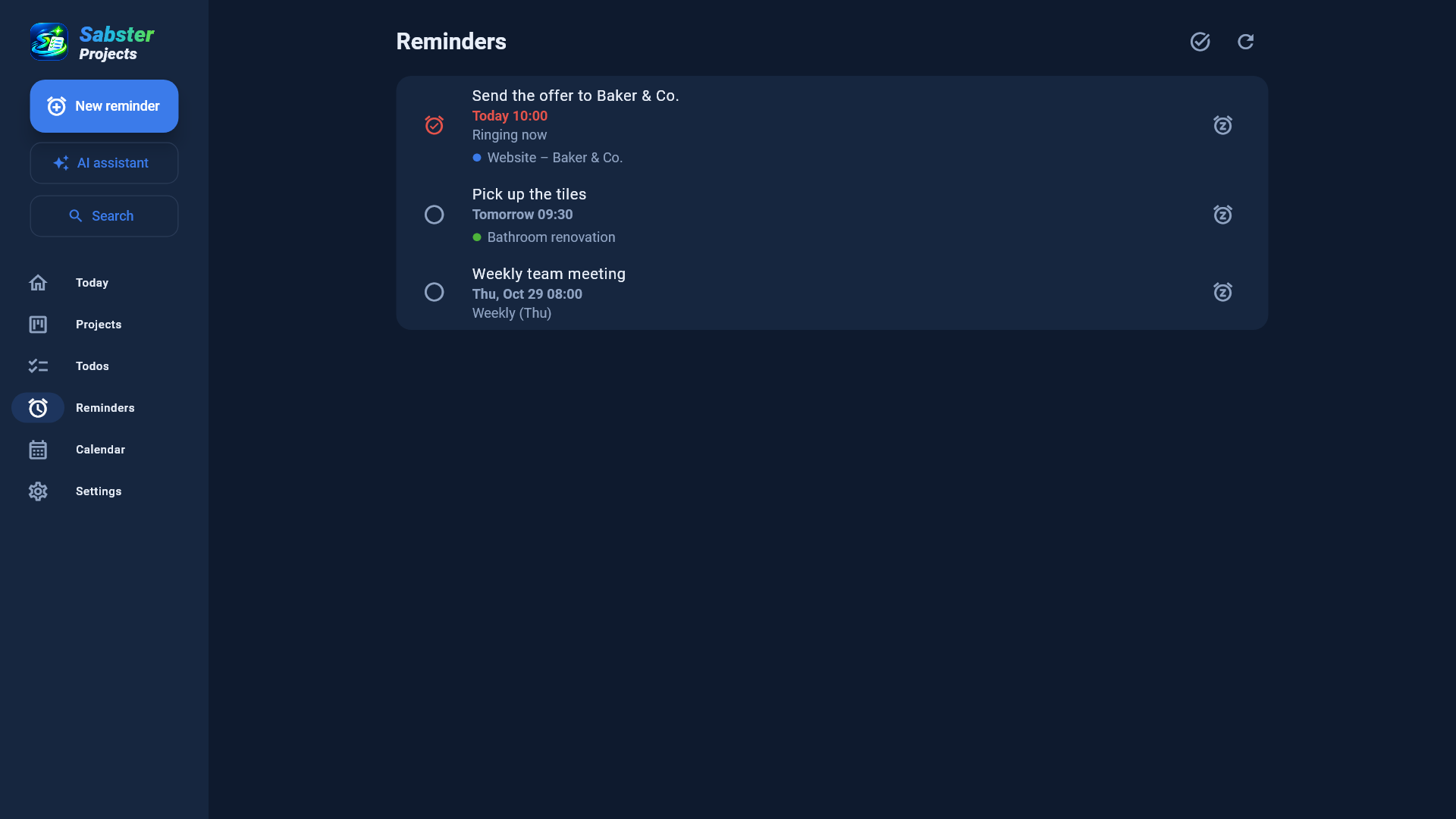
A reminder isn't just a quiet notification: it rings like an alarm and keeps repeating until you mark it done or snooze it.
A new reminder
- + on the Reminders page (or add one on a project's Overview).
- Title, note, date and time.
- Repeat: Once, Every day, Weekdays, Weekly (on the days you pick), Monthly, Yearly, or Custom… – e.g. "every 2 weeks", "on the last day of every month", "every second Monday of the month".
- Optionally link it to a project.
When it rings
- On the phone a full-screen alarm with sound, even on the lock screen. Done and 5 min also work right from the notification.
- On Windows an alarm window pops up with sound, plus a Windows notification.
- Done – a one-time reminder is done; a repeating one moves on to its next time.
- Snooze: 5 min, 1 h, tomorrow, or Pick a time….
Alarm sound
Under Settings → Notifications you can choose the sound: from the phone's own sounds on a phone, from the Windows sounds on Windows (you can play them first).
Windows: it runs in the tray
On Windows, closing the window only hides the app; it keeps running in the tray (next to the clock) so reminders can ring. To quit, right-click the tray icon and choose Quit. The app starts with Windows into the tray by default – switch this off under Settings → Notifications.
10. Calendar and calendar sync
The Calendar shows everything with a date, month by month: waits running out, project deadlines, tasks, milestones, reminders and the appointments of your linked calendars, each in its own colour. Tap a day to see its items below.
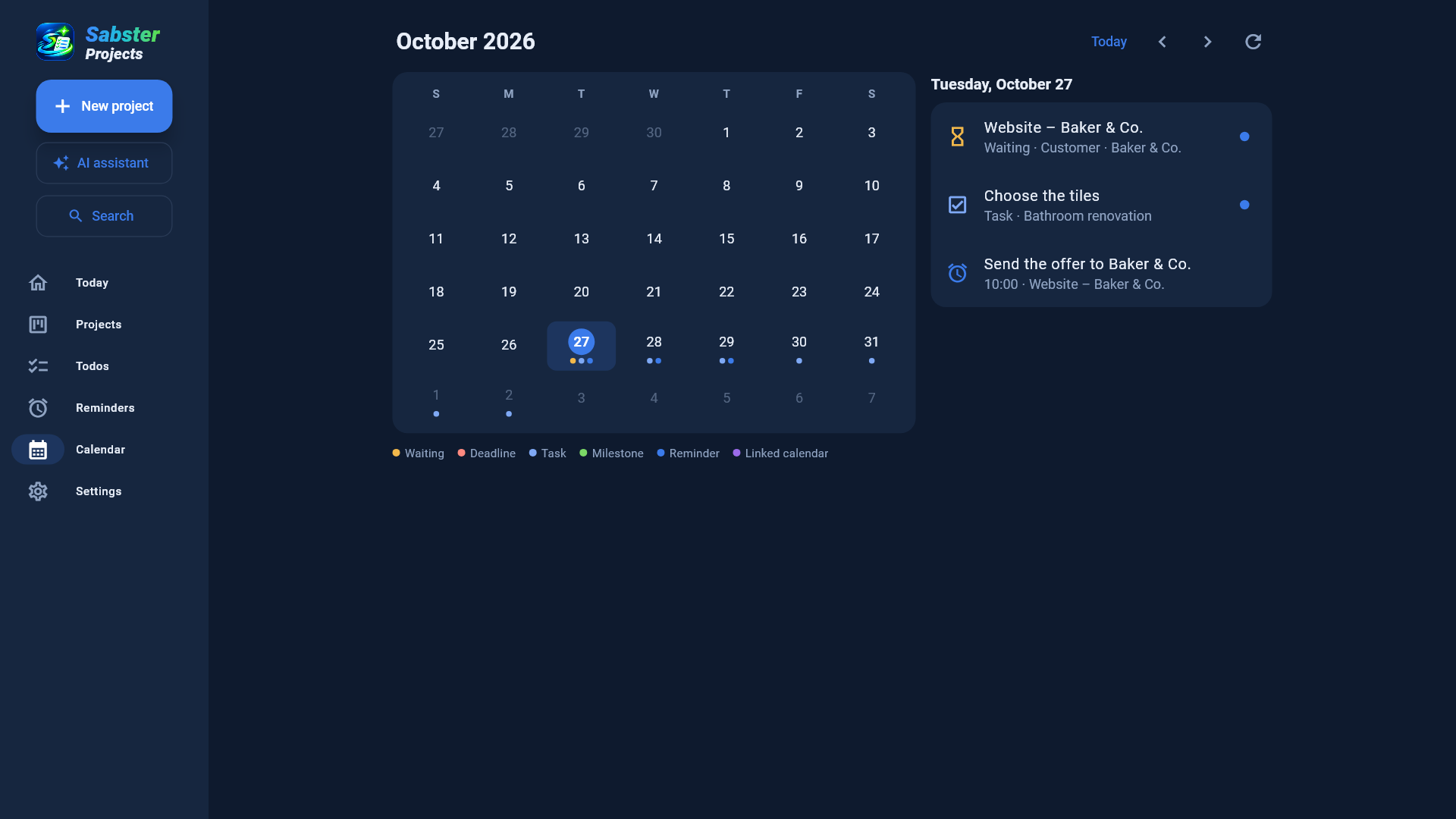
- The arrows move by month; Today takes you back to today.
- On a PC, the mouse wheel over the calendar moves by a week (down: later, up: earlier).
- Appointments lasting several days show on each of their days (e.g. "Trip (2/3)").
Sabster's dates in your Google, Outlook or Apple Calendar
Under Settings → General → Calendar sync you get a private calendar link. Add it with the Google Calendar, Outlook or Apple / other button; from then on your deadlines, tasks, milestones and reminders also show there, in a separate "Sabster Projects" calendar. The calendar app refreshes it every few hours (Google sometimes slower).
Your Google or Outlook calendar in Sabster
- In Google Calendar on the web: Settings → your calendar → Integrate calendar → Secret address in iCal format – copy it. In Outlook: Settings → Calendar → Shared calendars → Publish a calendar → ICS link.
- In Sabster: Settings → General → Linked calendars → Link a calendar; give it a name and a colour and paste the address.
- Reminder before appointments: switch it on and set how long before (e.g. 10 minutes) and for appointments in the next how many days (14 by default).
The appointments show on the Calendar, and timed ones get a reminder marked 📅. Sabster reads your calendar every 15 minutes, and also whenever you open or refresh the Calendar page. A renamed appointment renames its reminder, a moved one moves it, a deleted one removes it. All-day events don't get a reminder.
11. Projects from email
Most work arrives by email. Forward it to your own project address and Sabster organises it.
Your address
Under Settings → Email you see your own, secret email address (e.g. k7x2m9@projects.sabster.hu). Copy it and save it in your mail program's contacts.
What happens when you forward an email
- The email's subject becomes a project (without "Re:", "Fwd:" and the like), or it goes into the existing project with that subject.
- The email itself (.eml, opens in Outlook) and its attachments go to the project's Files.
- Each attachment gets a "Check attachment" task marked 📎.
- With Pro, the AI reads the things to do out of the email and adds them as tasks, with their deadlines ✨ – see AI assistant.
- Replies (same subject) arrive in the same project, even after you renamed it.
Who may send to your address
For safety, only emails from your account's address are accepted. If you forward from another address too (e.g. your work address), add it under Accepted from with Add address. The list of recent emails shows what arrived and what didn't (e.g. "Not accepted: … isn't on the list").
The tasks' language
With Language of tasks from emails (AI) you choose: the email's own language (the default), or translated into a language you pick.
Under Recent emails each email shows what became of its tasks: how many were added, that the AI found nothing to do, or why it couldn't read it. If reading failed, Read tasks again tries once more.
If your address got out and you get spam, Get a new address gives you a new one; the old one stops working at once.
12. AI assistant (Pro)
The AI assistant adds things from one sentence – by voice or text. It's part of the Pro plan (and available during the trial).
Using it
- Tap the ✨ button (bottom right on a phone, in the left menu on a PC, in a project's header).
- Say it with the 🎤 button, or type what to add. You can pause while speaking; the text stays and the microphone continues it.
- Check the text and tap Do it.
Examples:
- "Kitchen project: call the tiler on Friday, and remind me tomorrow at 9 to send the quote."
- "Note for the garden: mowing cost 4,500 HUF." (it can add it as a cost too)
- "New contact for the Decathlon project: Anna Kovács, buyer, +36 30 123 4567."
- "Sample order project: give Csaba the sample pickup for next Tuesday."
It can add tasks, todos (no project), reminders, notes, decisions, costs and contacts, and understands days and times ("tomorrow", "Friday at 2 pm", "next week"). Opened inside a project, things go there unless you name another one.
When it can't find the project
It asks: "I couldn't find the project "…". Which one should it go into?" – pick one from the list, or No project, or Skip.
Undo
Under the list of what was added, Undo removes everything the last instruction added.
From emails
The AI reads the things to do out of emails forwarded into a project and adds them as tasks (marked ✨), with deadlines when the email mentions them.
500 AI actions a month use the strongest model; beyond that it keeps working with a simpler one.
13. Sharing and the public status page
Sharing a project
- Tap the 👥 Share icon in the project's header.
- Enter the other person's email and choose: can edit or can only view.
- If they have an account they see the project right away; if not, they get an invitation by email and the project appears after they sign up.
People you share with don't need a subscription. The People list shows who has access, and you can stop sharing with anyone.
Notifications about changes
When someone changes something in a shared project, the others get a phone notification (at most one every 5 minutes per project) and – if they switched it on – an email with all the changes every 15 minutes.
Public status page
Your customer doesn't need an account: on the project's sharing screen switch on the Public status page and send them the secret link. You decide what it shows: status, deadline, next steps (all, only the first, or none), milestones, task progress (done / all) and a note for the customer. New link makes the old link stop working.
14. Templates
If you often start similar projects (e.g. every sample order has the same steps), save one as a template.
- In the project's ⋮ menu: Save as template. Choose what goes into it (tasks, notes, links, contacts, shopping list…).
- For a new project, pick the template: the project starts with its content, dates shifted to today.
- Apply template to an existing project (⋮ menu): the template's items are added, without doubling the ones already there. Projects started from email offer this on their Overview too.
Your templates are under Settings → Templates, where you can open them like a project to edit, overwrite or delete them.
15. Notifications and the morning summary
Under Settings → Notifications:
- Reminder notifications – phone notifications for waits that run out and assigned tasks.
- Daily summary email and its time – the Today page by email every morning: reminders, waits, deadlines, tasks, next steps. It only comes when there's something in it.
- Phone notifications and Email about changes by others – the changes in shared projects.
- Alarm sound – see Reminders.
- On Windows: Start with Windows.
You can send yourself a test notification and a test summary to check everything works.
16. Subscription and account
Trial and plans
After signing up you use every feature free for 14 days. Then:
| Base | Pro | |
|---|---|---|
| Monthly | 2,000 HUF | 2,500 HUF |
| Yearly | 20,000 HUF | 25,000 HUF |
| Every feature | ✓ | ✓ |
| AI assistant, AI tasks from emails | – | ✓ |
Subscribe under Settings → Account with Subscribe: in the Android app through Google Play, on the web and on Windows by card. You can change plans or cancel there too; cancelling takes effect at the end of the period you paid for.
When the trial or a subscription ends, nothing is lost: you can look at your projects, you just can't change them. Projects shared with you work without a subscription.
Account
- Change password – under Settings → Account, with the icon next to your name.
- Language and theme (dark, light, system) – Settings → General.
- Default deadline – new projects (and those from email) start with a deadline this many days ahead.
- Log out and Delete account – Settings → Account. Deleting is immediate and final: all your own projects are deleted with their files.
17. Questions and troubleshooting
I forwarded an email but it didn't show up
Check the recent emails under Settings → Email. "Not accepted: … isn't on the list" – emails from that address aren't accepted yet: add it under Accepted from and send it again.
Reminders don't ring on the phone
Allow notifications, "alarms & reminders" and full-screen notifications, and turn off battery optimisation for the app. Open the app once so it schedules the alarms again.
Reminders don't ring on Windows
The app has to be running in the tray (among the icons next to the clock). If you quit it, start it again, and leave Start with Windows on.
A new Google appointment doesn't show
Open or refresh the Calendar page – Sabster reads your calendar again then. If it's still missing, Google is slow to update the secret iCal address; try again in a few minutes.
A change doesn't show on my other device
Tap ↻ Refresh. Check that you're logged in with the same account on both devices.
A file doesn't upload
Storage is 1 GB for all your projects together (you see how much is used at the bottom of the Files tab). When it's full, delete old files, or delete archived projects for good. On a slow connection large files upload in pieces – wait until the progress bar finishes.
Any other question?
Write to us: projects@sabster.hu.